Playbook: SharePoint Site or Google Shared Drive Vanished
Timed runbook when an entire SharePoint site, document library, or Google Shared Drive is gone — freeze, confirm scope, restore the container, then verify. Do not treat it as a single-file delete.

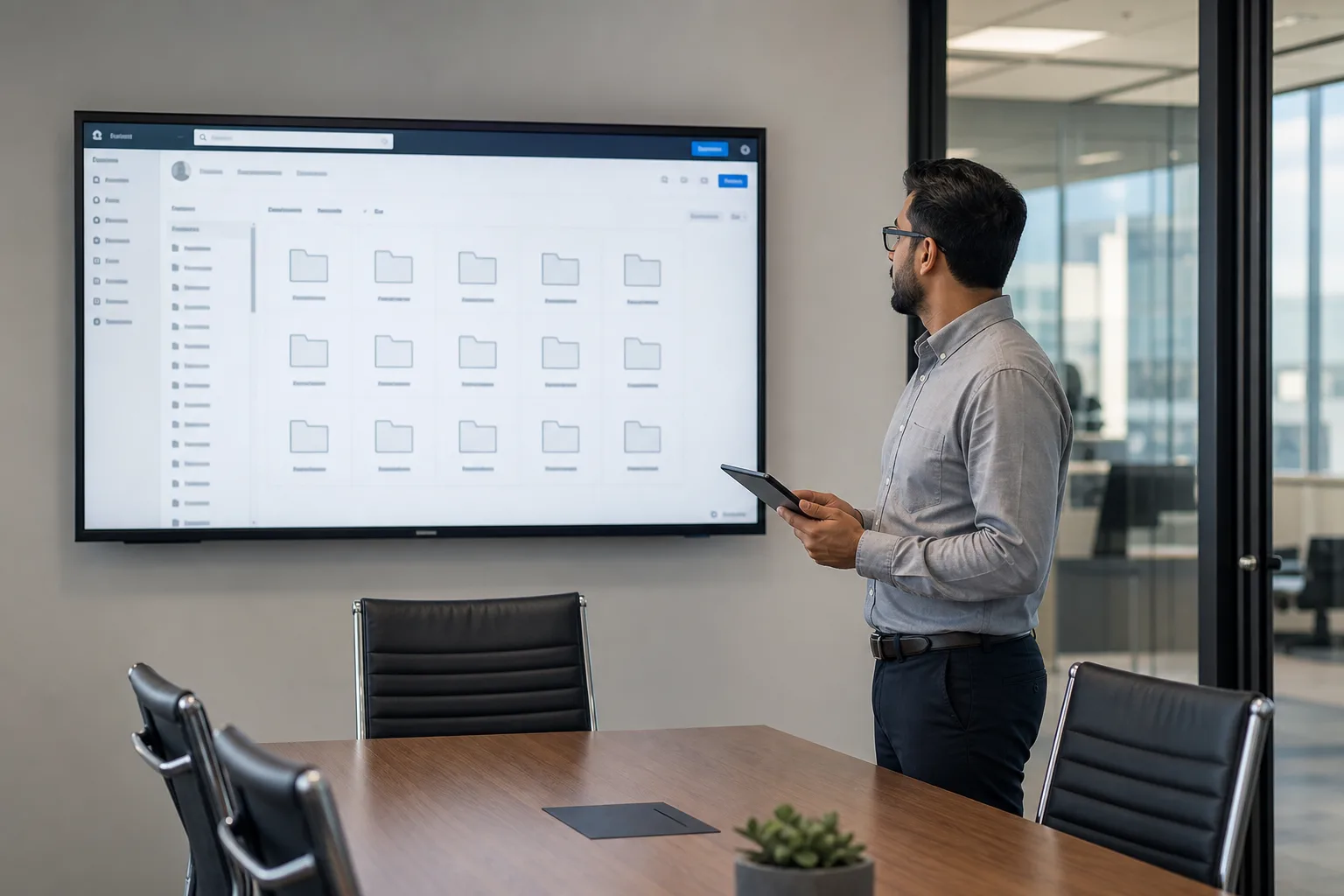
- A missing site or Shared Drive is a container incident, not a file ticket.
- Freeze sync and stop people recreating the same name — you can orphan the restore.
- SharePoint: deleted sites have their own recycle path. Drive: managers restore Shared Drive trash.
- Restore the container first, then sample files, then tell the business where to work.
When to use this playbook
Trigger: users cannot open a SharePoint site, a whole document library, or a Google Shared Drive. Individual files still appearing in search while the container is missing still belongs here.
If only some files inside a live library are gone, use the mass-delete playbook instead.
Severity and who owns it
P1 if the container is the team’s working set (sales, legal, product). Owner: SharePoint admin or Google Workspace admin. Helpdesk does not recreate the site in the first hour.
First 15 minutes
- Write the original URL, display name, and last known owners.
- Pause OneDrive / Drive for desktop on machines that synced that location.
- Tell the team: do not create a replacement site or Shared Drive with the same name; do not empty Trash.
- Check audit / activity: who deleted or changed sharing in the last 24 hours. Treat unknown admins as a security track in parallel.
First 60 minutes
SharePoint / OneDrive
- Deleted site — SharePoint admin center → Deleted sites (typical restore window on the order of 93 days; confirm your tenant). Restore the site before you rebuild navigation.
- Deleted library inside a live site — Recycle Bin, then second-stage Recycle Bin.
- Site still exists but everyone lost access — this may be permissions, not delete. Do not restore a second copy until you check sharing and Microsoft 365 Groups.
Google Shared Drive
- Managers: Shared Drive trash (not only My Drive Trash).
- Admin console: restore a recently deleted Shared Drive if it still appears in deleted items / Vault is not a substitute for an interactive drive.
- If the Drive is empty but still listed, you may have a mass delete inside a live container — switch to the 60-minute mass-delete playbook.
Restore to the original identity when the admin UI allows it. Then open five sample files from different folders before announcing “we’re back.”
Day 2
- Rebuild navigation, hub links, and Teams tabs that still point at the old URL.
- Re-share external links; they often die with the container.
- Tighten who can delete sites or Shared Drives. Add a second manager so one leaver cannot take the Drive with them.
- If restore failed, continue with native windows expired.
Do / don’t
| Do | Don’t |
|---|---|
| Restore the deleted container | Create a same-name empty Drive “so people can work” |
| Sample files before a wide all-clear | Restore over a brand-new replacement library |
| Pause sync clients | Let laptops recreate a hollow folder tree into the cloud |
What to tell the business
We are restoring the original site/Drive, not building a copy. Do not create a new one with the same name. Do not empty Trash. Work from email attachments only until we send a URL.
Exit criteria
Users open the restored URL, sample files match last-known-good, and sync is re-enabled on one pilot PC before everyone else.
More playbooks: incident playbook index.