How to Restore a File from Version History in OneDrive, SharePoint, and Google Drive
When an overwrite, not a delete, ruined a document: how version history works, where it fails, and how to restore to a side path instead of blindly reverting live files.

- Version history fixes overwrites and some sync rollsbacks; it does not resurrect a permanently deleted file.
- Always download or restore a copy beside the live file before you click Restore.
- Google Docs versions and uploaded binary versions behave differently.
- Version limits and ‘Don’t keep versions’ policies can silently shrink your safety net.
Overwrite is not the same incident as delete
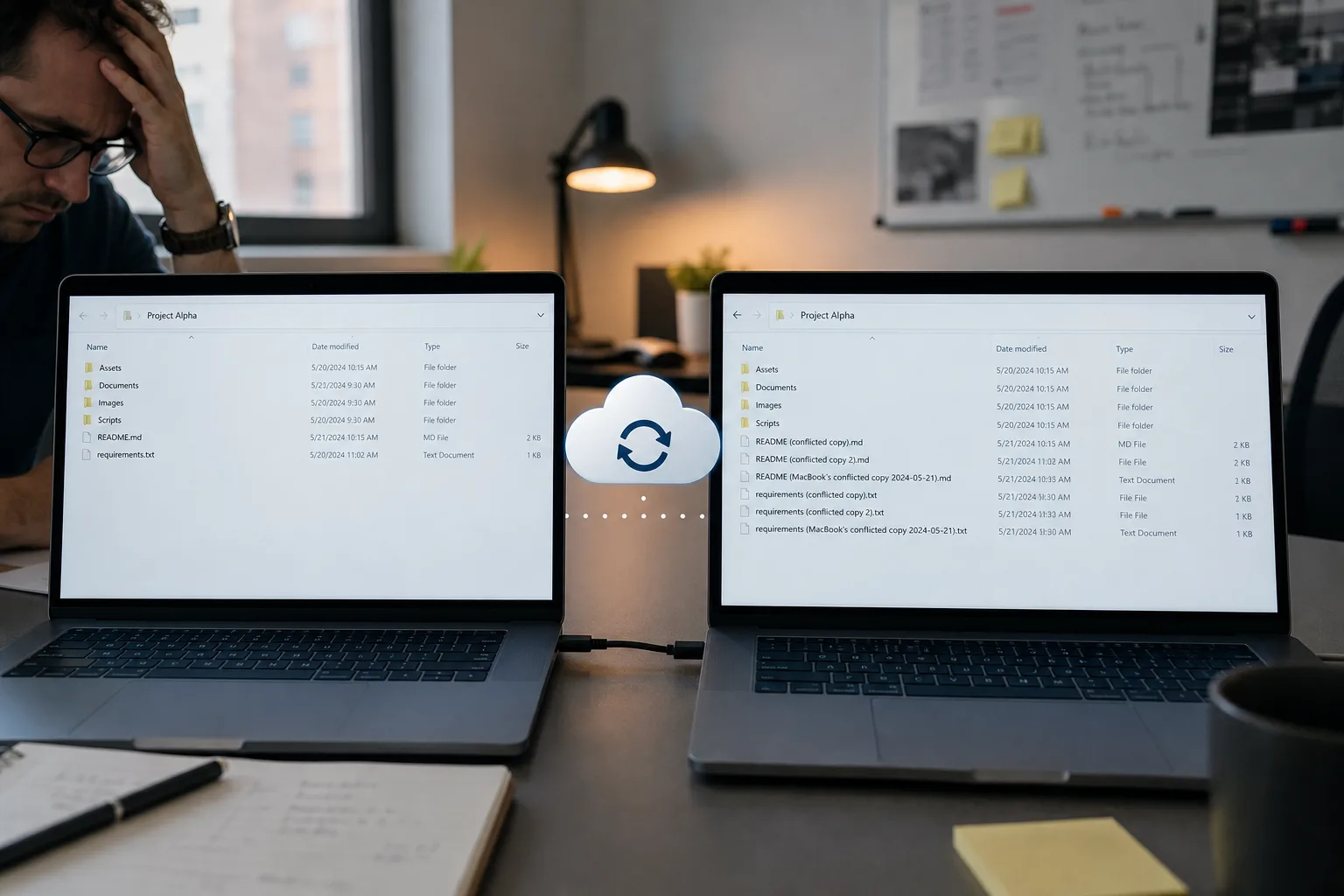
A designer who saved over a brand deck, a OneDrive client that replayed an old laptop copy, or a colleague who accepted the wrong merge — the file is still there. Recycle Bin will not help. Version history is the native tool for this class of loss.
OneDrive and SharePoint
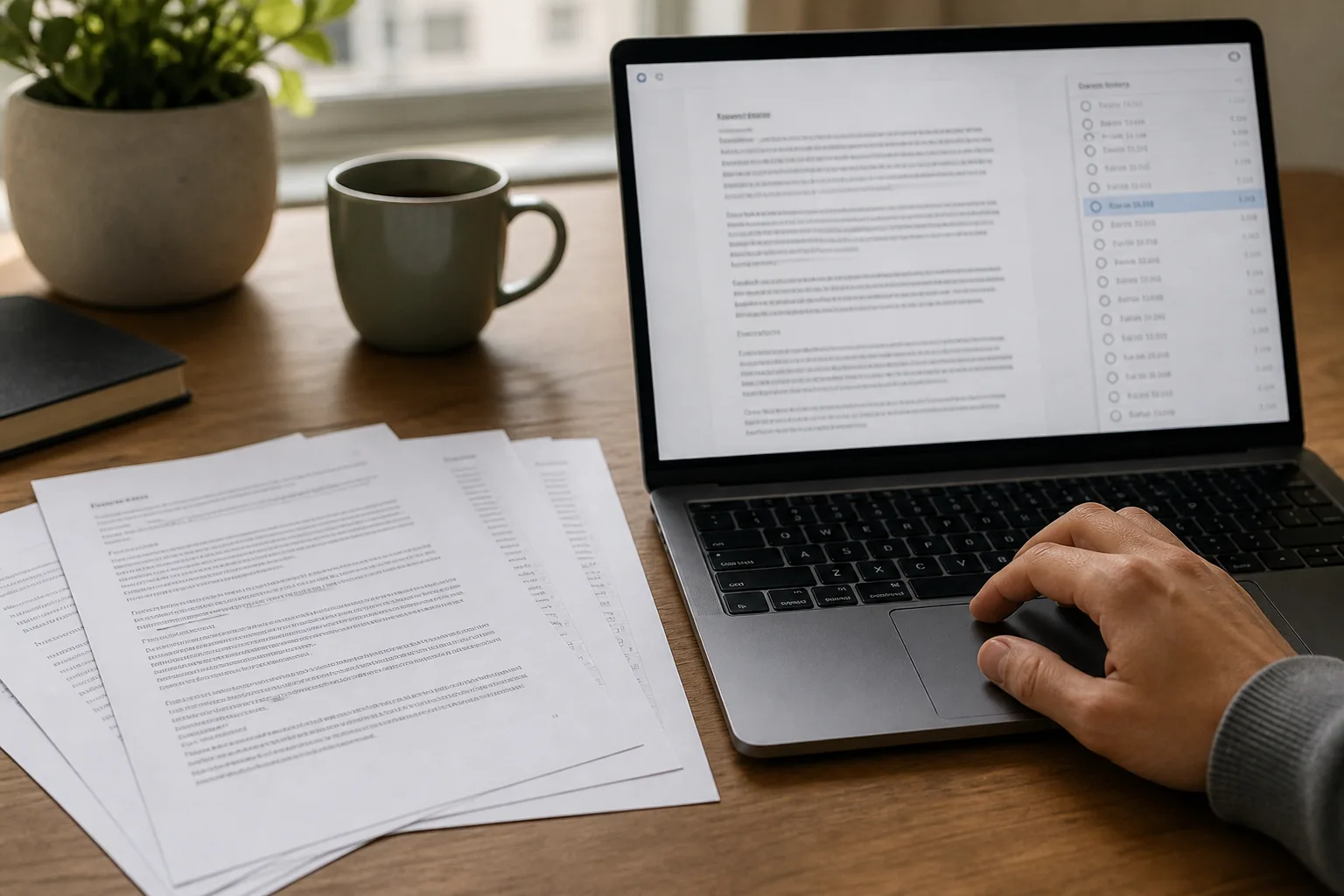
In the web app, open the document library, select the file, choose Version history. You will see timestamps, modifiers, and sizes. Open a version to preview when the type allows it. Prefer download that version (or restore to a copy) over Restore on the live item until you have confirmed you have the right one.
Restoring in place is convenient and dangerous: it can hide a newer good copy you did not know existed. Side-by-side comparison on disk is slower and safer.
Excel, Word, and PowerPoint in Microsoft 365 generally version well. Large videos, CAD, and some desktop-sync-only formats may have fewer or no previews. If versioning is set to “no versioning” on a library, history will be empty even though the file looks healthy.
Google Drive
For Google Docs, Sheets, and Slides, File → Version history shows named and automatic revisions. Restore a version inside the editor, or make a copy first if you need both.
For uploaded files (PDF, Photoshop, Office binaries), Drive keeps a shorter, storage-consuming version list. You can manage versions from the file’s menu. Shared Drives follow the same idea, but only people with enough permission can restore. A Viewer who “lost” a file may simply lack rights to see history.
A restore sequence that avoids making things worse
- Write down the last known good time and who last edited.
- Confirm the file still exists (not in Trash / Recycle Bin).
- Download the candidate version to a folder named
restore-test-YYYYMMDD. - Open it locally. Check comments, tracked changes, and linked assets.
- Only then replace the live file — or keep both and rename.
Where version history will disappoint you
- The item was deleted and Trash has already emptied.
- Someone used a client that uploaded a new object ID instead of a new version (some migration tools do this).
- Ransomware encrypted the file and those encrypted versions filled the quota — older good versions may have been pruned.
- Desktop “offline” copies diverged; see deleted vs sync conflict.
Related reading
If the file is actually gone, start with the first 60 minutes after a mass delete and, for Drive specifically, restoring deleted Google Drive files.